# Cisco
You can integrate Aporia with Cisco's Full-Stack Observability Platform to receive alerts and notifications directly to the platform, and view your models health status in a centralized place.
### Setting up the FSOP Integration
1. Create a service principal in Cisco's platform
1. Login to [https://accounts.appdynamics.com/overview](https://accounts.appdynamics.com/overview)
2. Click on **Access Management** and go to **Service Principals**
Cisco FSOP Account Management
3. Click on **Add**
Cisco FSOP Service Principal Management
4. Define the new service principal. Note to pick **Basic** for **Authentication Type** and add the **Agent** default role access (Under **Edit Role Access**). Then click on **Create**.
Service-Principal Configuration
5. Save the output service principal details - They will be needed for the Aporia integration.
Service Principal Details
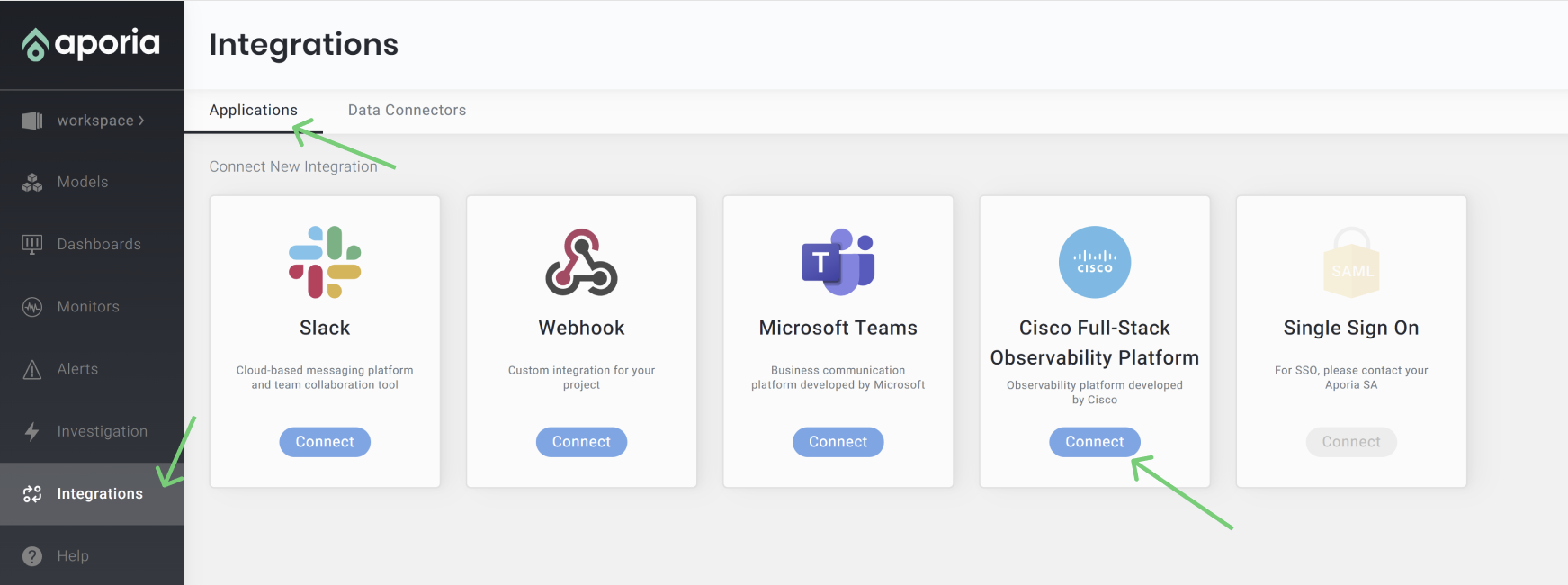
2. Log into Aporia’s console. On the navbar on the left, click on **Integrations,** switch to the **Applications** tab, and choose **Cisco**.
Cisco Integration
3. Enter your **Tenant Details** and **Service Principal Details**, as created in the previous step**.** The Tenant URL should include the schema with no added URIs (https://\.observe.appdynamics.com).
Integration Configuration
4. Click Save. On success the save button will become disabled, and you'll be able to Test the integration.
**Congratulations: You’ve now successfully integrated Aporia to Cisco's FSO Platform!**
After Integrating Cisco FSOP, any monitors will be automatically configured to send alerts to the platform.\
Monitor Configuration
In addition, the workspace state will now be synced to the FSO platform periodically, including models and alerts.
Happy Monitoring!